Blog Posts

Thoughts, tutorials, and insights on web development and creative work

Quick Navigation

Building Modern Web Experiences with React

Developing Dynamic Web Experiences Using React

React has transformed the way we build web applications. Its component-based architecture isn't just a design pattern—it's a paradigm shift that makes complex UIs manageable and maintainable.

Why React?

When I first started with React, I was amazed by how intuitive it felt to break down a UI into reusable pieces. Each component is self-contained, making debugging and updates significantly easier than traditional approaches.

Key Benefits

  • Reusability: Write once, use everywhere. Components can be shared across projects.
  • Performance: Virtual DOM ensures efficient updates and rendering.
  • Ecosystem: Massive community support and thousands of libraries.
  • Developer Experience: Tools like React DevTools make development smooth.

Best Practices I Follow

Through my projects like MoviePlex and ShopKar, I've learned that keeping components small and focused is crucial. Each component should do one thing well. State management becomes easier when you follow this principle.

Another lesson: don't over-optimize early. React is already fast. Focus on writing clean, readable code first, then optimize if needed.

"The best code is the code that's easy to understand and maintain, not the cleverest code."

If you're starting with React, my advice is simple: build projects. Lots of them. Each project teaches you something new about component design, state management, and the React ecosystem.

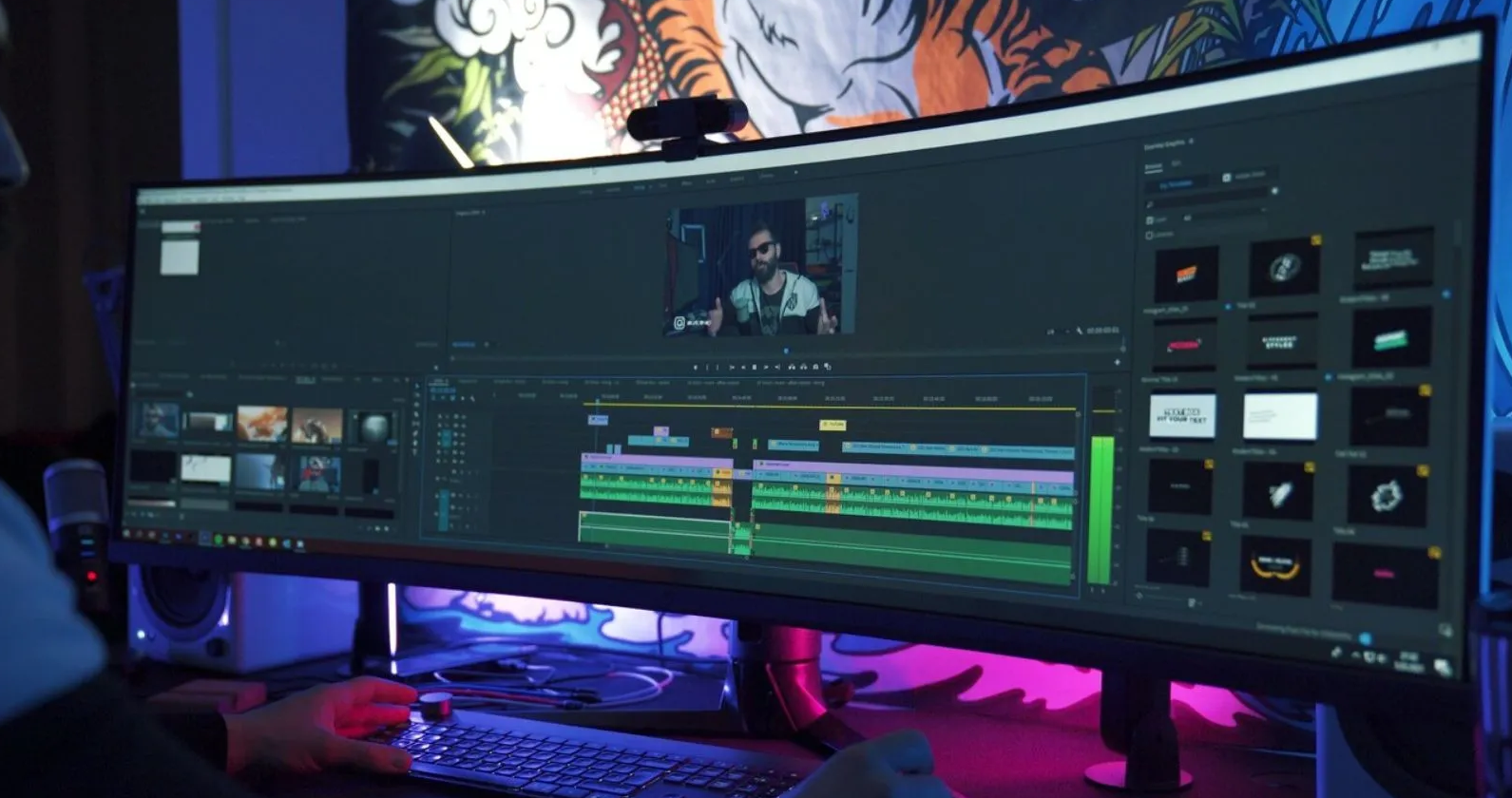
The Art of Video Editing

The Art of Video Editing: Shaping Raw Footage Into Visual Art

Video editing is where technical skill meets creative vision. As a freelance video editor, I've learned that great editing is invisible—it guides the viewer's emotions without calling attention to itself.

The Foundation: Understanding Your Story

Before touching any software, I always ask: What story am I telling? Every cut, transition, and effect should serve the narrative. Random fancy effects might look cool in isolation, but they can break the viewer's immersion.

My Editing Process

  1. Organization: Import all footage and organize by scene or theme
  2. Rough Cut: Create the basic structure without worrying about perfection
  3. Fine Tuning: Adjust timing, add transitions, refine the flow
  4. Color Grading: Enhance mood and consistency
  5. Sound Design: Add music, sound effects, and mix audio
  6. Final Review: Watch multiple times, get feedback, polish

Tools and Techniques

I primarily use DaVinci Resolve for its powerful color grading and professional-grade features. The Fusion page lets me create complex motion graphics, while Fairlight handles audio mixing beautifully.

For transitions, I prefer cuts over fancy effects 90% of the time. A well-timed cut is more powerful than a dissolve or wipe. Save the flashy transitions for moments that need emphasis.

Color Grading Magic

Color grading can make or break a video. I always start with exposure and white balance correction, then move to creative looks. Consistency across shots is key—viewers notice when the color shifts unnaturally.

"In editing, what you leave out is just as important as what you keep in."

Whether you're editing cinematic content, YouTube videos, or social media reels, remember: the best edits enhance the content without overshadowing it. Technical excellence should serve the creative vision, not the other way around.

CSS Animations

CSS Animations: Bringing Your Website to Life

Animations aren't just eye candy—they're essential for creating intuitive, engaging user experiences. When done right, they guide users, provide feedback, and make interactions feel natural and responsive.

The Psychology of Animation

Users expect immediate feedback when they interact with elements. A button that responds with a subtle scale or color shift feels alive. A loading spinner tells users to wait. These micro-interactions build trust and improve perceived performance.

Performance Matters

The golden rule: animate only transform and opacity properties when possible. These properties don't trigger layout recalculation or repainting, making animations buttery smooth at 60fps.

/* Good - Uses transform for smooth animation */
.button {
  transition: transform 0.3s ease;
}

.button:hover {
  transform: translateY(-2px);
}

/* Avoid - Animating top causes layout shifts */
.button:hover {
  top: -2px; /* Don't do this */
}

Animation Principles I Follow

  • Purposeful: Every animation should serve a function
  • Subtle: Less is more—don't distract from content
  • Fast: Keep durations between 200-400ms for most interactions
  • Natural: Use easing functions like ease-out for realistic motion
  • Accessible: Respect prefers-reduced-motion for users sensitive to animation

Types of Animations

Transitions: Perfect for hover states, focus indicators, and simple state changes. They're the easiest to implement and most commonly used.

Keyframe Animations: When you need complex, multi-step animations. Great for loading states, entrance effects, or drawing attention to important elements.

Real-World Example

In my portfolio, I use fade-in animations as elements scroll into view. This creates a sense of progressive disclosure, revealing content as users explore. The animation is subtle (0.6s duration) and uses a slight upward movement to feel natural.

@keyframes fadeInUp {
  from {
    opacity: 0;
    transform: translateY(30px);
  }
  to {
    opacity: 1;
    transform: translateY(0);
  }
}

Accessibility Considerations

Always include this media query to respect user preferences:

@media (prefers-reduced-motion: reduce) {
  * {
    animation-duration: 0.01ms !important;
    transition-duration: 0.01ms !important;
  }
}
"Animation is not just about making things move—it's about creating meaningful, delightful experiences."

Start small. Add a hover effect to your buttons. Fade in content on scroll. Experiment with timing functions. The best way to learn animation is to build and iterate. Your users will notice the difference.

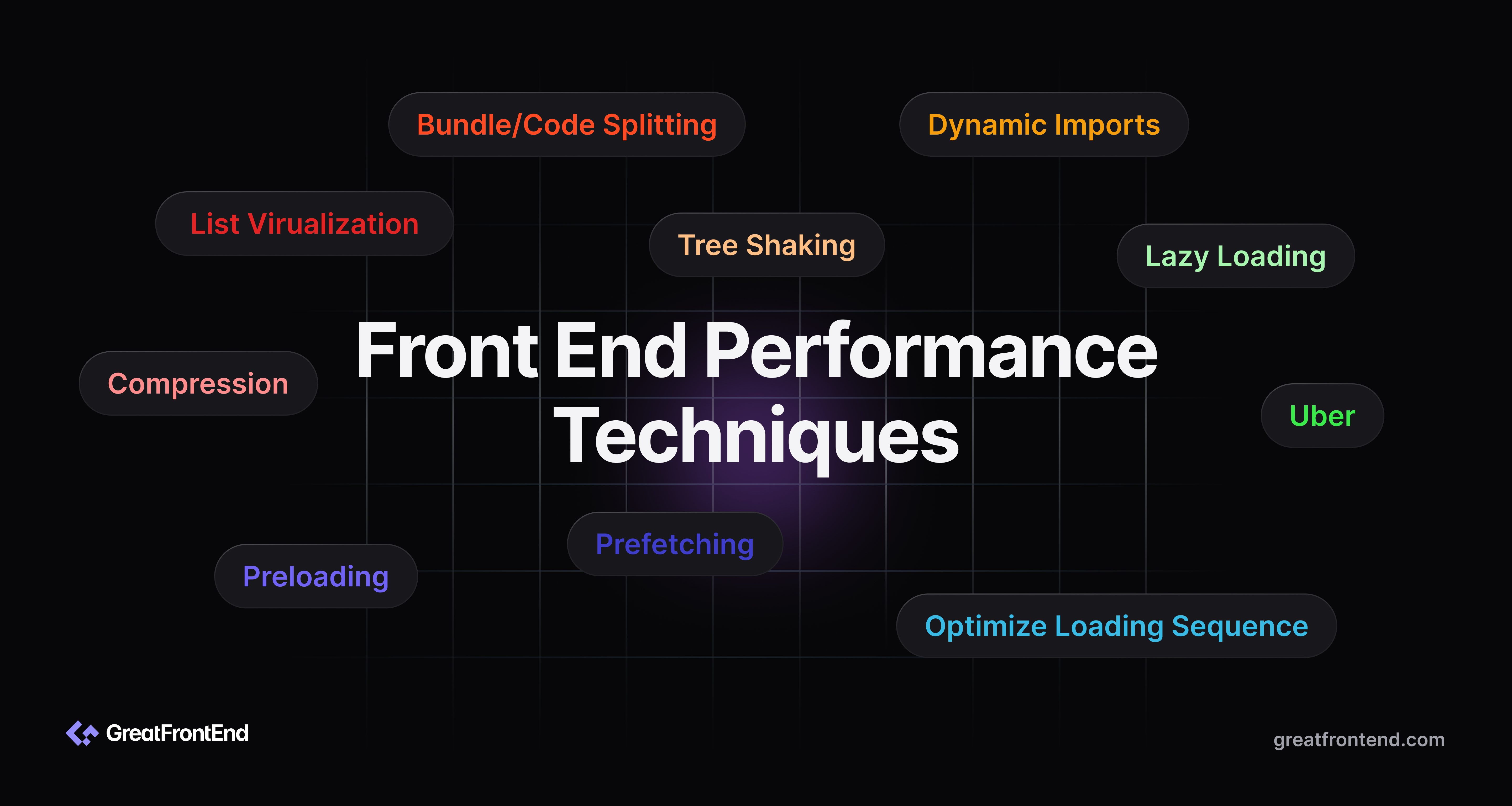
Frontend Performance

Mastering Frontend Performance: Speed Up Your Website

In today's fast-paced digital landscape, performance isn't just a feature—it's a necessity. Users expect websites to load instantly, and every millisecond counts. A slow website means lost users, reduced conversions, and a poor user experience. As a frontend developer, optimizing performance is one of the most impactful skills you can master.

Why Frontend Performance Matters

Studies show that 53% of mobile users abandon websites that take longer than 3 seconds to load. Performance directly affects user satisfaction, SEO rankings, and business metrics. Optimizing your frontend isn't just about making your site faster—it's about respecting your users' time and bandwidth.

Key Performance Metrics

Understanding web performance metrics is crucial for measuring and improving your site:

  • First Contentful Paint (FCP): Time until the first content appears
  • Largest Contentful Paint (LCP): Time until the largest content element is visible
  • Cumulative Layout Shift (CLS): Measure of unexpected layout shifts
  • Time to Interactive (TTI): Time until the page is fully interactive

Optimization Techniques I Swear By

1. Code Splitting and Lazy Loading

Instead of sending one massive bundle, split your code into smaller chunks loaded on demand. With React, this is incredibly easy:

import React, { lazy, Suspense } from 'react';

const HeavyComponent = lazy(() => import('./HeavyComponent'));

export default function App() {
  return (
    <Suspense fallback={<div>Loading...</div>}>
      <HeavyComponent />
    </Suspense>
  );
}

2. Image Optimization

Images often account for the majority of a page's weight. Always compress images, use modern formats like WebP, and serve responsive images:

<picture>
  <source srcset="image.webp" type="image/webp">
  <source srcset="image.jpg" type="image/jpeg">
  <img src="image.jpg" alt="Description" loading="lazy">
</picture>

3. Minimize JavaScript Execution

Heavy JavaScript can block the main thread. Break up long-running tasks, use Web Workers for heavy computations, and defer non-critical JavaScript:

<!-- Defer non-critical scripts -->
<script defer src="analytics.js"></script>

<!-- Load critical scripts in the head -->
<script src="critical.js"></script>

4. Implement Caching Strategies

Leverage browser caching and service workers to cache static assets. This dramatically reduces load times for returning visitors:

// Set cache headers
Cache-Control: max-age=31536000 (for assets with hashes)
Cache-Control: no-cache (for frequently updated files)

Tools I Recommend

  • Google Lighthouse: Comprehensive audit tool for performance, SEO, and accessibility
  • WebPageTest: Detailed performance testing from real browsers
  • Bundle Analyzer: Visualize what's in your JavaScript bundle
  • GTmetrix: Performance monitoring and recommendations

Real-World Impact

In my projects, I've seen performance improvements lead to:

  • 40% reduction in initial load time through code splitting
  • 60% smaller image payloads with WebP and compression
  • Improved Core Web Vitals scores leading to better SEO rankings
  • Better mobile experience for users on slower networks

The Performance Mindset

Performance optimization isn't a one-time task—it's a mindset. Always think about:

  • What am I shipping to the user?
  • Is this necessary for the initial page load?
  • Can I defer this to improve TTI?
  • How can I reduce the total bundle size?
"Performance is a feature. It's not a nice-to-have—it's essential for delivering great user experiences."

Start measuring your site's performance today. Run Lighthouse, identify bottlenecks, and incrementally improve. Your users will thank you with better engagement, and your business will see improved metrics. Performance optimization is one of the highest-impact skills in frontend development.